Connect to Claude
Add ALT Sports Data to Claude Desktop or Claude Code — project, global, or Desktop config.
Connect to Claude
Use the tabs below for Claude Desktop (GUI app) or Claude Code (CLI agent). Claude Code includes the project-level vs global setup in a second tab row—the same “double” pattern as elsewhere in these docs.
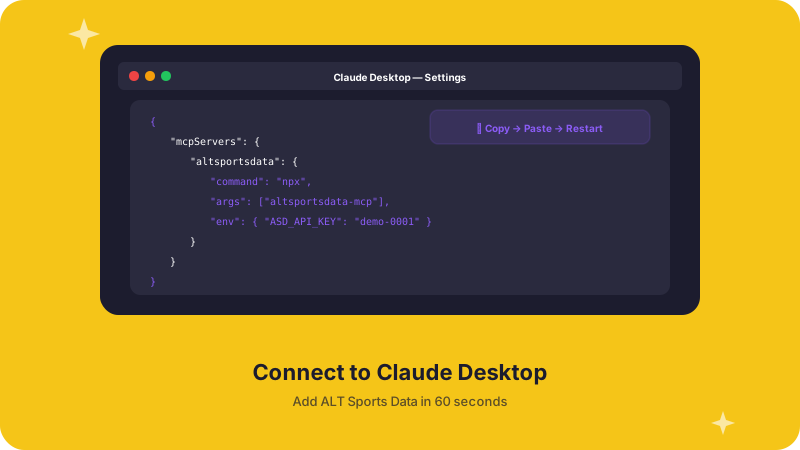
Give Claude Desktop access to live alternative sports data with a single config change.
Open Your Config File
macOS:
open ~/Library/Application\ Support/Claude/claude_desktop_config.jsonWindows:
%APPDATA%\Claude\claude_desktop_config.jsonIf the file doesn't exist, create it.
Add the MCP Server
Paste this into your config (merge with any existing mcpServers):
{
  "mcpServers": {
    "altsportsdata": {
      "command": "uv",
      "args": [
        "run",
        "--directory", "/path/to/altsportsdata-mcp",
        "python", "-m", "altsportsdata_mcp.server"
      ],
      "env": {
        "ALTSPORTSDATA_API_KEY": "your_api_key"
      }
    }
  }
}
Replace /path/to/altsportsdata-mcp with the actual path where you
cloned the repo, and your_api_key with your real ALT Sports Data API
key.
If you installed via pip/uv globally, you can simplify:
{
  "mcpServers": {
    "altsportsdata": {
      "command": "altsportsdata-mcp",
      "env": {
        "ALTSPORTSDATA_API_KEY": "your_api_key"
      }
    }
  }
}
Restart Claude Desktop
Quit and reopen Claude Desktop. Click the 🔧 tool icon in the chat input: you should see 29 ALT Sports Data tools available.
Try It
Type a natural language query:
"What WSL surfing events are happening this month? Show me the top 5 favorites for the next event."
Claude will automatically call get_events and get_favorites behind the scenes.
Troubleshooting (Desktop)
| Issue | Fix |
|---|---|
| No tools visible | Make sure uv is in your PATH. Try running the command manually in terminal first. |
| "API key invalid" | Double-check ALTSPORTSDATA_API_KEY in the config. |
| Server won't start | Run python -m altsportsdata_mcp.server manually to see error output. |
| Tools loading slowly | First call may take 1-2s for cold start. Subsequent calls are fast. |
Claude Code is Anthropic's CLI coding agent. It discovers MCP servers automatically from config files.
Create .mcp.json in Your Project Root
{
  "mcpServers": {
    "altsportsdata": {
      "command": "uv",
      "args": [
        "run",
        "--directory", "/path/to/altsportsdata-mcp",
        "python", "-m", "altsportsdata_mcp.server"
      ],
      "env": {
        "ALTSPORTSDATA_API_KEY": "your_api_key"
      }
    }
  }
}
This is the same format as Claude Desktop — one config works everywhere.
Use It
claudeThen ask:
"Get me the upcoming F1 events and the moneyline favorites for each."
Claude Code will call get_events, get_moneylines, and get_favorites automatically.
Register via CLI
claude mcp add altsportsdata \
  --command "uv" \
  --args "run" "--directory" "/path/to/altsportsdata-mcp" \
        "python" "-m" "altsportsdata_mcp.server" \
--env ALTSPORTSDATA_API_KEY=your_api_keyUse Everywhere
The server is now available in every Claude Code session — no per-project config needed.
claude "What BKFC events are live right now? Get me the odds."Remove or Update (Claude Code)
# Remove
claude mcp remove altsportsdata

# Update (re-add with new config)
claude mcp remove altsportsdata
claude mcp add altsportsdata --command "uv" ...
What's Next?
- Tools Reference → — See what all 29 tools can do
- Cursor → — Use with Cursor IDE
- API Reference → — Review the raw endpoint layer behind the tools